
10. MIDI / MIDI Learn / Automation
This chapter explains how to play and control Synth-80 in combination with an external MIDI keyboard or controller, as well as with your DAW's automation.
Beyond simply playing notes from the keyboard, Synth-80 lets you move sound parameters in real time using the knobs and faders of a physical controller, and record those movements in your DAW. The mechanisms that make this possible are MIDI Learn and Automation.
Note
The MIDI covered in this chapter is "ordinary plugin MIDI input" sent to Synth-80 from a DAW or keyboard. The dedicated MIDI port used for exchanging patch data with a real Roland MKS-80 via SysEx is a separate system. For integration with the hardware, see → Chapter 11 "SysEx / MKS-80 Integration".
10.1 Ordinary MIDI Input
Synth-80 plays by receiving standard MIDI messages sent from a DAW or MIDI keyboard. The messages it accepts are as follows.
| Message | Role |
|---|---|
| Note On / Note Off | Key on / off. Controls note triggering and release. |
| Velocity | How hard a note is struck. Reflected in changes to volume and tone. |
| Sustain (CC64) | Sustain pedal. Holds notes while pressed. |
| Pitch Bend | Pitch bend wheel. Raises and lowers pitch. |
| Mod Wheel (CC1) | Modulation wheel. Reflected in modulation amounts such as vibrato. |
| Volume (CC7) | Volume. Raises and lowers the performance volume independently of Patch Volume. |
| Channel Aftertouch | Channel aftertouch. Adds expression as you press into the keys. |
How Velocity, Pitch Bend, Mod Wheel, and Aftertouch affect the sound is determined by the settings on both the Tone side and the Patch side. For a clause-by-clause explanation of each parameter, see → Chapter 7 "Tone Parameter Reference" and → Chapter 8 "Patch / Performance Reference".
Note
For how Mod Wheel and Channel Aftertouch are handled, see → Chapter 8 "Patch / Performance Reference". The relationship between the two (such as the fact that they share the same modulation destination) is consolidated there.
10.2 What Is MIDI Learn
MIDI Learn is a feature that assigns the physical knobs, faders, and buttons of your MIDI controller to any parameter in Synth-80. Once assigned, simply moving that controller changes the corresponding parameter in real time.
The real MKS-80 was edited via a programmer (the MPG-80), but Synth-80 lets you freely tie generic MIDI CCs to the parameters of your choice. This is a modern feature added as a convenience unique to software.
The targets you can assign are the knobs, faders, and selectors shown on screen. You can assign the Upper and Lower Tone parameters, the Patch-related parameters, and the parameters of each slot in the Effect Chain.
You can also assign the PATCH forward and back arrows in the top bar. The arrow steps once when the CC value rises to 64 or above; holding a high value does not keep stepping. It cycles through the Patches in the same folder, or, after you load a Patch from filtered results in the preset browser, through those results (→ Chapter 5, 5.7).
10.3 Using MIDI Learn
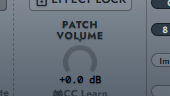
MIDI Learn operations start from the MIDI Learn button in the PATCH VOLUME block at the bottom right of the screen.
Entering Learn Mode
Pressing the MIDI Learn button enters Learn mode. In Learn mode, the following changes occur.
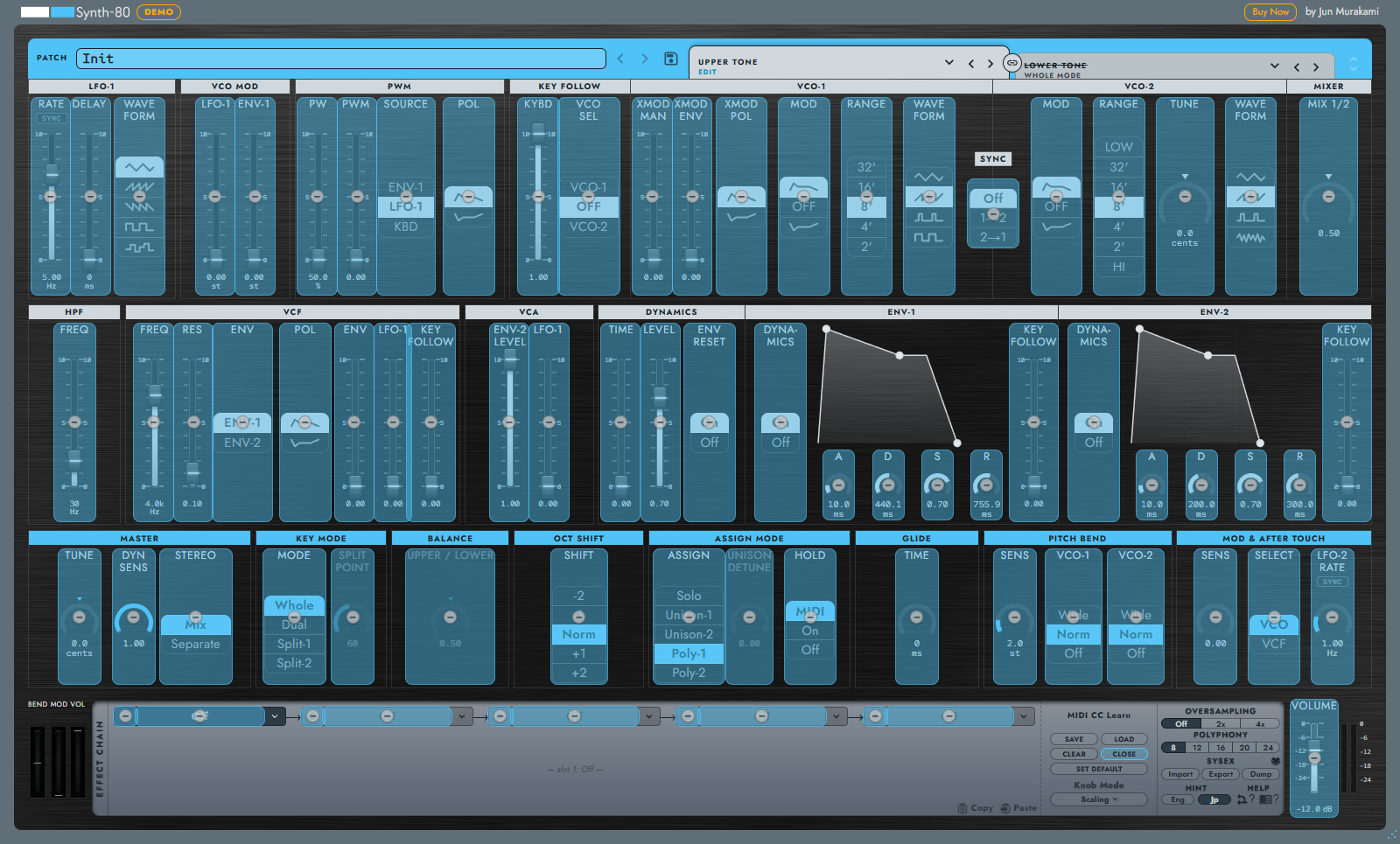
- An overlay (a small badge) appears over each assignable parameter on screen.
- Parameters that already have a CC assigned display that CC number (e.g.,
CC 74). - Parameters that are not yet assigned display
--, indicating they are unassigned. - The
PATCH VOLUMEblock switches toSAVE/LOAD/CLEAR/CLOSEbuttons and aKnob Modeselector.
Assigning a CC
- While in Learn mode, click the overlay of the parameter you want to assign to select it. The selected parameter is highlighted.
- In that state, move a physical knob or fader on your MIDI controller. The MIDI CC number it sends is then assigned to the selected parameter.
- Once the assignment is complete, the new CC number appears on the overlay.
Note
The operation you use to make the assignment does not move the value of the target parameter. It is used only to tie the CC number. This is intentional, to prevent the value from jumping unexpectedly. From the next time you move that controller, the parameter follows along. How it follows is selectable via Knob Mode (→ 10.4).
Assigning the Same CC to Multiple Parameters
You can also assign the same CC number to multiple parameters. For example, you can move several parameters at once with a single knob. Duplicates are allowed, so feel free to set things up as you need.
Exiting Learn Mode
Pressing CLOSE ends Learn mode. The currently selected target parameter is also deselected.
10.4 Knob Mode (Controller Response Mode)
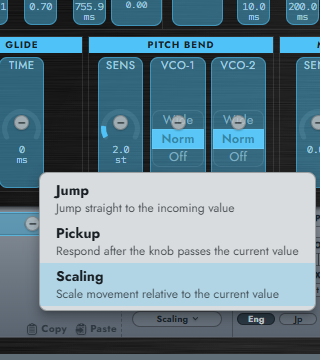
You can choose from three modes that determine how incoming CC values are applied to a parameter when you move a controller assigned via MIDI Learn. Press the Knob Mode button in the PATCH VOLUME block while in Learn mode to open the selection menu.
| Mode | Behavior |
|---|---|
| Jump | Jumps straight to the incoming CC value. This is the simplest behavior, but if the knob position on your controller differs from the parameter's current value, the value jumps the moment you move the knob. |
| Pickup | Does not respond until the knob position matches (or passes through) the parameter's current value. No value jumps occur, but you need to sweep the knob to find the current value before it starts responding. |
| Scaling | Scales the knob movement relative to the parameter's current value (default). No value jumps occur, and turning the knob to either end (minimum / maximum) brings the parameter to that end as well, after which it tracks 1:1. |
If in doubt, simply leave it on the default, Scaling. It combines the advantages of both other modes: no value jumps, and no "dead zone" where the knob does not respond until it matches.
Note
Knob Mode is stored as a per-user setting, not as part of a Patch or DAW project. Once selected, the same mode is used across all plugin instances and projects (other instances that are already open pick it up the next time they are reopened).
Caution
If you use a controller with endless encoders, set the controller's transmit mode to "absolute" (sending absolute values 0–127). Relative (increment / decrement) modes are not currently supported and will not work correctly with any Knob Mode.
10.5 Saving and Loading MIDI Maps (.s8m)
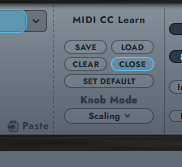
The entire combination of assigned MIDI CCs is called a "MIDI map." A MIDI map can be saved and loaded as a .s8m file. You operate it from the buttons in the PATCH VOLUME block while in Learn mode.
| Button | Action |
|---|---|
| SAVE | Writes the current MIDI map to a .s8m file. |
| LOAD | Loads a .s8m file and replaces the MIDI map. |
| CLEAR | Clears all assignments. |
| CLOSE | Ends Learn mode. |
| SET DEFAULT | Saves the current MIDI map as the "default map." From then on, every newly opened Synth-80 instance starts with this map already applied. |
The Default Map (SET DEFAULT)
Once you have set up the assignments for your controller, press SET DEFAULT so that the same assignments are available from the start every time you open Synth-80 in a new project or on a new track — no need to load a .s8m file each time.
- The default map is stored as a per-user setting (it is not included in Patches or DAW projects).
- It only affects newly opened instances. When you open a saved DAW project, the assignments stored in that project are restored as they are.
- To disable the default (start from a clean state again), press
CLEARto remove all assignments and then pressSET DEFAULT.
Caution
The MIDI Learn map is not included in the ordinary sound parameters of a Patch (.80p). The map is managed separately and saved as a .s8m file. As a result, even if you load a different sound Patch, your current MIDI assignments are kept as they are.
Note that MIDI Learn assignments are also retained as part of the plugin's state. When you save a DAW project and reopen it, the assignments are restored as they were. The .s8m file is used to carry those assignments to another project or machine, or to switch between multiple assignment patterns.
10.6 Difference from the SysEx MIDI Port
Synth-80 has a feature for choosing a dedicated MIDI port (a direct MIDI port) for exchanging patch data with a real MKS-80. This is used for sending and receiving SysEx, and is explained in → Chapter 11 "SysEx / MKS-80 Integration".
MIDI Learn and MIDI CC automation do not use this SysEx port. They strictly use the ordinary MIDI input coming into the plugin from your DAW or keyboard.
Note
Even if you have not set up the direct MIDI port for SysEx, MIDI Learn and MIDI CC automation work without any problem. The two are completely separate systems.
10.7 Host Automation and MIDI CC Automation
There are broadly two ways to move Synth-80's parameters automatically from your DAW. Since the two work differently, use them according to your purpose.
Host Automation
This is a method in which the DAW writes plugin parameters directly. You select a parameter in the DAW's automation lane and operate it by drawing a curve.
- No MIDI CC is interposed; the DAW controls the parameter value directly.
- You select a parameter by name in the DAW and write automation.
- The movement when you operate a knob with the mouse can also be recorded in the DAW as an ordinary parameter change.
MIDI CC Automation
This is a method that moves parameters via the CC assigned with MIDI Learn.
- First, assign a physical CC to a parameter with MIDI Learn.
- When you move the physical controller, that CC is converted to the parameter and applied.
- If you record the CC into a MIDI track in your DAW, the same movement can be reproduced on playback.
In short, the difference is that Host Automation has "the DAW moving the parameter directly," whereas MIDI CC Automation has "the CC being converted to the parameter via MIDI Learn." MIDI CC Automation is suited to real-time performance using a controller, while Host Automation is suited to detailed editing within the DAW.
Note
Parameter movements driven by MIDI CC are not written to the DAW's host automation. Even when the DAW's automation mode is Touch / Latch / Write, moving a parameter via CC never records anything into the automation lanes (this matches the behavior of major soft synths). If you want to keep the movement in your DAW, record the CC itself into a MIDI track, or use Host Automation instead. This design avoids the value conflicts that would occur on playback if the same movement existed both as recorded CC data and as automation, driving the same parameter twice.
10.8 Reordering the Effect Chain and the MIDI Map
The Effect Chain can be reordered by dragging the tabs (→ Chapter 9 "Effects"). When you do this, the MIDI map stays with the slot position (the position in the signal flow), not with the contents of the Effect.
For example, if you had assigned "CC74 to parameter 3 of the first slot," then even if you reorder the tabs so that a different Effect comes into that slot, the assignment remains tied to the position "parameter 3 of the first slot."
Note
Reordering swaps the contents of the Effects (the IParam values), but the MIDI map follows the slot position. Keeping in mind that the assignment is tied to the position in the signal flow, not to the type of Effect, helps you avoid confusion.