
3. Basic Operation
This chapter summarizes the basic operations common to all panels of Synth-80.
3.1 Knobs and Faders
Both circular knobs and vertical faders are operated by dragging up and down (vertically) to change their value.
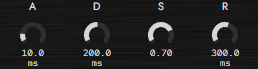
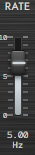
- Besides dragging, you can also fine-tune a value by hovering over a knob/fader and turning the mouse wheel.
- Holding a modifier key (macOS: Command, Windows: Ctrl, or Shift) while operating lets you fine-tune the parameter in smaller increments than usual.
- To return a knob or fader to its default (initial) value, click it while holding a modifier key.
3.1.1 Typing a Value Directly
Double-click a knob or fader, or click the value readout below it, to open a numeric entry popup. When you know exactly the value you want, this is faster and more precise than dialing it in by dragging.
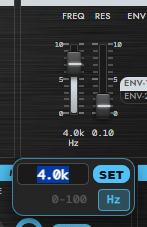
- When the popup opens, the input field already contains the current value, pre-selected, so you can simply type the new value over it.
- Press Enter or click SET to confirm. Press Esc or click outside the popup to cancel.
- Input that cannot be accepted (non-numeric text, or a decimal / out-of-range value in 0-100 mode) turns the input field's border red and is not committed.
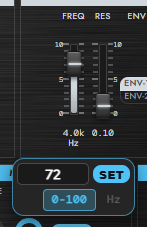
The toggle at the bottom right of the input field switches how the number you type is interpreted.
| Mode | Description |
|---|---|
| 0-100 | MKS-80-compatible panel value. Specify an integer from 0 to 100, exactly as on the original MKS-80 / MPG-80. Use this to type in values straight from original patch sheets or panel markings. |
| Raw value (Hz / ms / dB, etc.) | Specify the value in the same physical unit as the readout below the knob. K notation for frequencies, such as "4.0k", is also accepted. |
- Your toggle choice is remembered, and subsequent popups open in the same mode.
- Some parameters have no counterpart on the original hardware panel and accept raw values only (the input range is shown in place of the toggle). Examples: SPLIT POINT (MIDI note number 21-108), PATCH VOLUME (dB), and the effect knobs (→ Chapter 9, "Effects").
- When an LFO's RATE is in SYNC (tempo-synced) mode, the value is a note division and cannot be typed in numerically. Turn SYNC off to enter the rate in Hz.
3.2 Selectors, Waveform Buttons, Toggles, and Menus
Parameters that let you pick one option from a set of choices (waveform, range, mode, and so on) are operated not with a continuous knob but with vertically arranged button-style selectors. Click the item you want, and it becomes highlighted to show that it is currently selected.
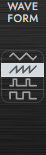
- Waveform buttons: Some controls, such as the VCO and LFO waveforms, indicate the choices with pictures (icons) of the waveforms. Hovering the mouse over one briefly shows the waveform name in a tooltip.
- Toggles: Items that switch between ON and OFF, such as SYNC, are operated with toggle-style buttons.
- Menus: Items with many choices, such as selecting a Patch category, are chosen from a menu.
The mouse wheel can also be used over selectors. One notch moves the selection one step to the adjacent choice.
3.3 Parameter Hints (Underlined Labels)
In Synth-80, a label is displayed above most controls. Clicking this label opens an explanatory popover for that parameter.
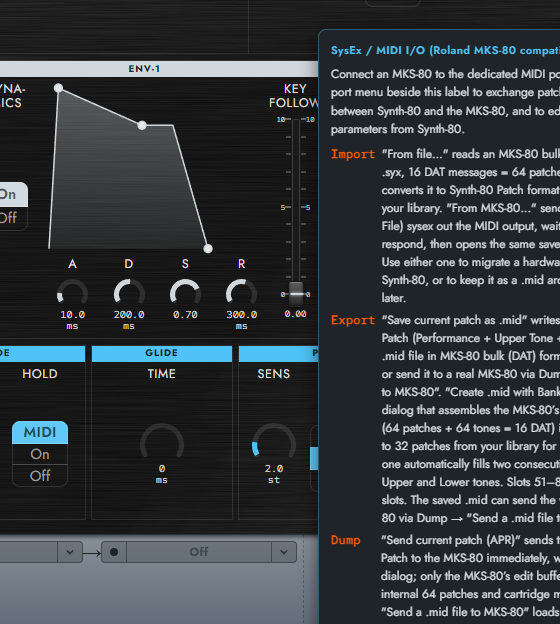
The popover shows the label's full name (fullName), an explanation of what happens when you change the parameter, and the meaning of each choice. Click the body of the popover or the underlined label again to close it.
3.4 Switching the Hint Display Language
You can switch the display language of the hint popovers between Eng (English) and Jp (Japanese) in the HINT field at the very bottom of the screen.
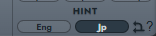
- The change takes effect immediately, and any hint opened afterward is shown in the language you selected.
- The selected language is saved locally, so it is retained even if you restart the plugin or reopen the DAW session.
3.5 Display of Inactive Parameters (Dimmed)
In Synth-80, parameters that have no effect on the sound under the current Key Mode or the object you are currently editing (Upper / Lower) may be shown dimmed.
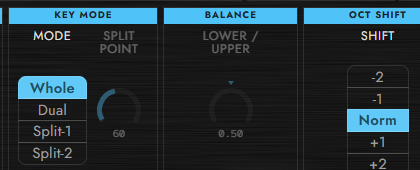
This does not mean "you cannot operate it"; rather, it is a sign that "with the current settings, changing this parameter will not be reflected in the sound." You can still change the value of a dimmed parameter, but the effect appears only when you switch to the Key Mode or editing target where it applies.
For example, depending on the Key Mode or layer configuration, there are situations where the Lower-side parameters have no effect. In such states, the relevant parameters are shown dimmed, so you can tell at a glance that they are "not sounding right now."
For the relationship between Key Mode (WHOLE / DUAL / SPLIT 1 / SPLIT 2) and Upper / Lower itself, see → Chapter 5 "Understanding Preset / Patch / Tone".
3.6 Relationship with DAW Automation
Knobs, faders, and selectors can also be operated directly from the DAW's automation. Even when you operate them with the mouse, the start of the operation, the value changes during the drag, and the end of the operation are conveyed to the DAW as normal parameter operations.
Therefore, if you put automation into a record (write) state and move a knob with the mouse, that movement is recorded as automation. Conversely, if you write automation on the DAW side, the knobs and faders on the Synth-80 screen follow along and move accordingly.
Operation from a MIDI controller (MIDI Learn) and the difference between Host Automation and MIDI CC automation are explained in detail in → Chapter 10 "MIDI / MIDI Learn / Automation".
3.7 Copying and Pasting Parameters
Synth-80 offers two kinds of copy & paste to help you reuse sounds efficiently: one copies an entire tone between the Upper and Lower slots, and the other copies and pastes parameters per section.
3.7.1 Copying a Tone Between Upper and Lower
When you stack two sounds (Upper Tone / Lower Tone) in DUAL / SPLIT, you may want to use one of them as the starting point for the other.
Press the v button to the right of the UPPER TONE / LOWER TONE tab in the top bar to open the tone selection menu. At the very bottom you will find "Copy from LOWER" (when editing Upper) or "Copy from UPPER" (when editing Lower).
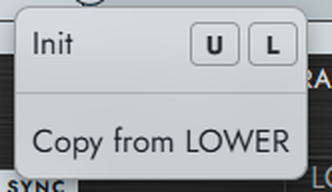
Clicking it copies all of the opposite slot's tone parameters (everything that belongs to the Tone — VCO / VCF / VCA / ENV / LFO, and so on), together with that slot's performance settings (the light-blue parameters of OCT SHIFT / ASSIGN MODE / GLIDE / PITCH BEND / MOD & AFTER TOUCH), into the slot you are currently editing. Afterward both slots hold the same settings, so you can refine one of them, or use the link icon between UPPER TONE / LOWER TONE to link their editing (→ Chapter 5 "Understanding Preset / Patch / Tone").
- What gets copied are the parameters that Upper / Lower can hold independently (the Tone and the performance settings above). MASTER / KEY MODE / BALANCE are settings shared by Upper / Lower, so they are not copied.
3.7.2 Copying and Pasting per Section
Each section — LFO-1 / VCF / ENV-1 and the like, i.e. the blocks with a colored title strip (white = Tone, light blue = Patch scope) — supports per-section copy & paste.
Hover the mouse over a section's title strip for a moment, and two icons — Copy and Paste — appear at the right edge of the strip.

- Copy (left icon): captures that section's parameters.
- Paste (right icon): pastes the captured contents into a section of the same type.
You can only paste between sections of the same type (for example, VCF contents can be pasted only into VCF). You can paste back into the same section after loading a different Patch, or copy between multiple running instances of Synth-80 (it uses the OS clipboard).
- ENV-1 and ENV-2 can be copied to each other. Because their Decay / Release maximums differ, however, any source value that exceeds the destination's range is clipped to the maximum when pasted.
- When you edit Upper / Lower separately in DUAL / SPLIT, the copy & paste applies to the slot currently shown and edited.
- Copy & paste for the entire effect chain is provided separately (→ Chapter 9 "Effects").