
10. MIDI, MIDI Learn, and Automation
10.1 Normal MIDI Input
Performance MIDI comes from the DAW track or Standalone MIDI settings. See Chapter 8 for All / Multi and Rcv Ch.
| Message | Main use |
|---|---|
| Note On / Off, Velocity | Playing, releasing, and note strength |
| Pitch Bend | Pitch change within the Voice's Bend Range |
| CC1 | Mod Wheel |
| CC2 / channel aftertouch | Breath Control expression path |
| CC4 | Foot Control |
| CC5 | Portamento Time |
| CC7 | Performance volume, separate from Patch / Master Volume |
| CC64 / CC65 | Sustain / Portamento |
| Program Change | Does not switch plug-in sounds. See Chapter 8 for the hardware table |
Polyphonic aftertouch and channel aftertouch are different messages. Aftertouch in this manual means channel aftertouch.
10.2 Learning a Controller
- Click CC Learn beside Effects.
- Click the overlay on the control you want to assign.
- Move a physical knob or fader on your MIDI controller.
- Its CC number appears. Click CLOSE to finish Learn.
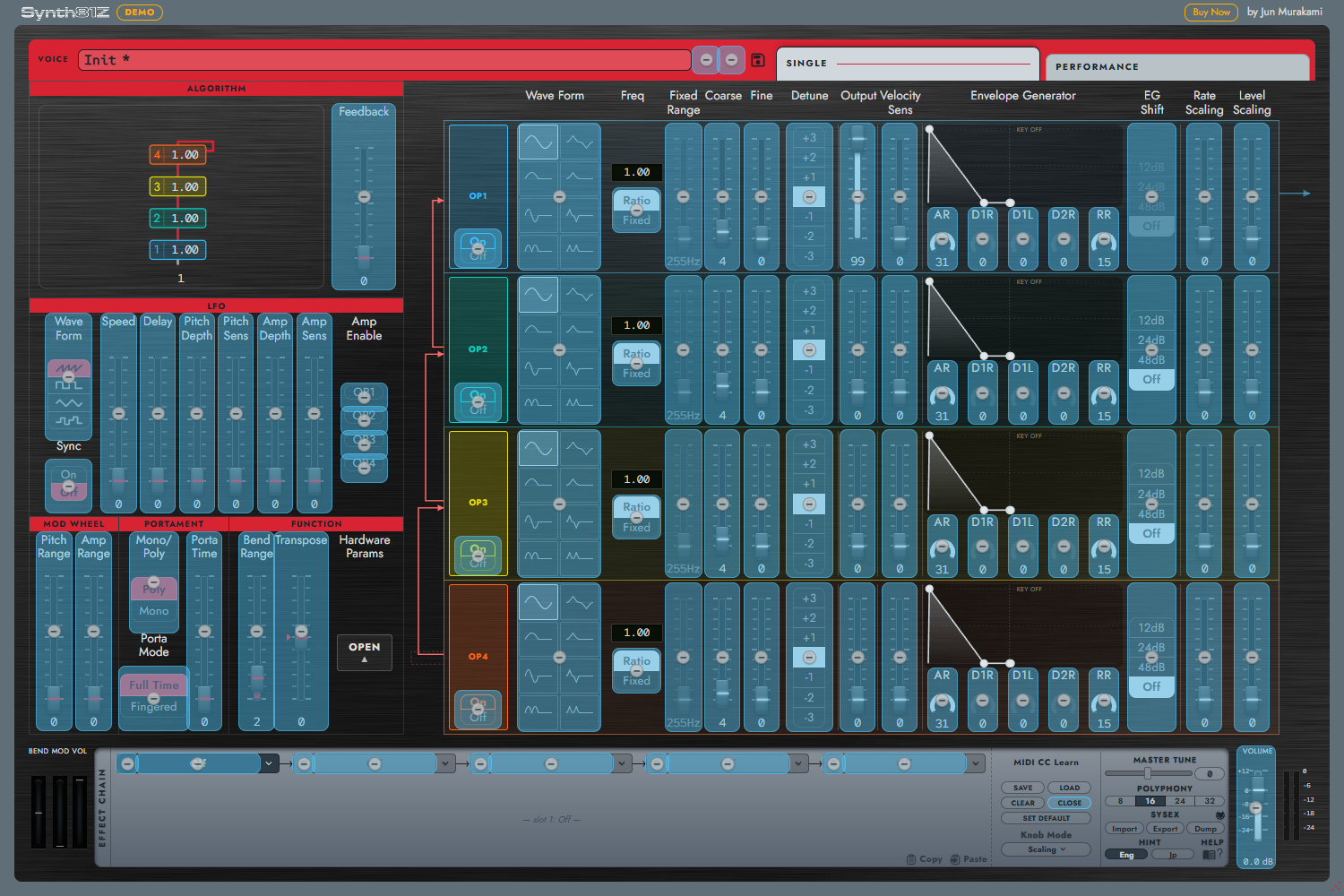
The first CC is used only for assignment; subsequent movement changes the value. A CC may address multiple targets. Remove an individual assignment through its display; CLEAR clears the whole map.
10.3 Targets and Restrictions
Controls showing a Learn overlay are available, including Voice controls and visible Effects knobs. Patch Volume is not a CC Learn target.
The preset arrows are also targets. A rising transition to CC 64 or above advances once; repeated high values do not keep advancing. Single navigates Voices and Performance navigates Performances within the same folder.
Performance supports each part's Pan / Volume / Mute / Solo. Mute / Solo use 64–127 for On and 0–63 for Off. Voices, key range, Detune, and HARDWARE tables are not Learn targets.
CC120–127 cannot be learned. Learning CC1 / 2 / 4 / 5 / 7 / 64 / 65 suppresses that CC's normal function. If Mod Wheel stops behaving normally after learning CC1 elsewhere, check the map.
10.4 Knob Mode
During Learn, choose Knob Mode to control what happens when physical and on-screen positions differ.
| Mode | Behavior |
|---|---|
| Jump | Immediately follows the incoming absolute value |
| Pickup | Waits until the hardware reaches or crosses the current value |
| Scaling | Follows smoothly from the current value and reaches the endpoint with the physical knob; the default |
Set the controller to send absolute 0–127 values. Relative encoder modes are not supported. Knob Mode is stored as a user preference.
10.5 Saving and Loading Maps
Use SAVE / LOAD for .s8m maps. Saving a sound preset does not export its MIDI map.
SET DEFAULT stores a map for new instances. To use an empty map by default, CLEAR the map and save that as the default if desired. DAW sessions also retain the instance's assignments.
10.6 Reordering Effects and Automation
Effects CC Learn addresses slot and visible knob position. Moving an effect does not make the assignment follow that effect. Changing Type may give the same knob position another role.
For host automation, choose from the parameters exposed by your DAW. Voice, Effects, and Patch Volume parameters are distinct from Performance file actions and table editors. Supported Performance mixer fields can be controlled through CC Learn.
Enable the DAW's Write / Touch mode to record panel gestures as host automation. Record CC messages on a MIDI track for CC automation. If both control the same value, check for unwanted overwriting.
Selecting direct SYSEX ports does not configure your DAW's keyboard or MIDI Learn input.