
2. Installation, Activation, and File Locations
2.1 Installation
Run the installer included in your download and select the formats you use. Windows uses an executable installer; macOS uses a pkg. Then rescan plug-ins in your DAW and insert Synth81Z on an instrument track.
| Format | Environment |
|---|---|
| VST3 | Compatible Windows / macOS DAWs |
| AU | Compatible macOS DAWs |
| AAX | Pro Tools, when included in the package |
| CLAP | Compatible hosts; check whether your distribution includes it |
| Standalone | Runs without a DAW |
Check the download's release information for included formats and OS requirements. This manual describes the instrument itself.
2.2 Playing Your First Sound
- In a DAW, enable MIDI input and monitoring on the instrument track. In Standalone, choose the audio output and MIDI input in the application's settings.
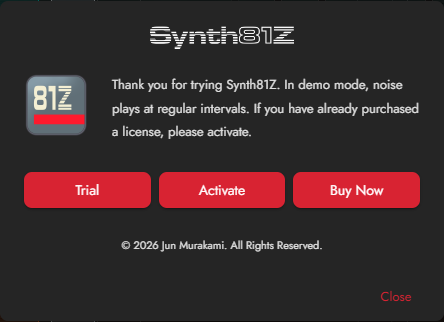
- Choose Trial in the activation dialog if you want to try the instrument first.
- Select Init in SINGLE and play a key. Init uses OP1 to produce a sine wave.
- Adjust the rightmost VOLUME and your audio device's listening level.
Note
The MIDI ports selected through the MIDI icon to the right of SYSEX are for direct TX81Z communication. Choose your normal keyboard input in the DAW track or Standalone settings.
2.3 Activating a License
Click DEMO at the top of the window, then Activate, and use the account associated with your purchase.
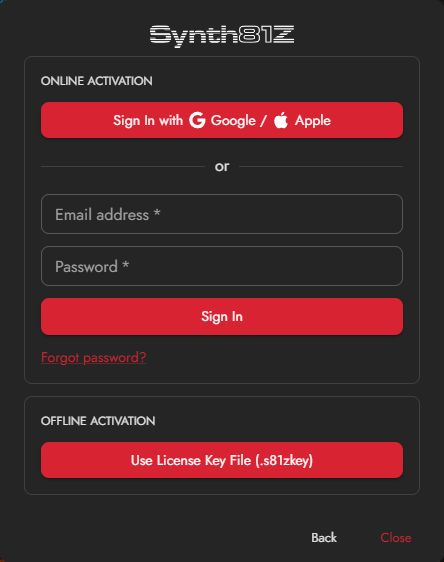
- Email and password: Sign in using the plug-in form. The same screen provides password reset.
- Google / Apple: A browser opens. Check that its code matches the code in the plug-in before approving. Restart the process if the code expires.
- Key file: Choose Use License Key File (.s81zkey) and select your Synth81Z key. You can also drag the file into the activation dialog.
Download key files from your account page. Keys for another product, or modified files, cannot activate Synth81Z.
2.4 Preset Locations
On both platforms, presets live under Synth81Z in your user Documents folder. If the OS redirects Documents to another drive or a synchronized location, that location is used.
Documents/Synth81Z/
  Voices/          Voice files (.81v)
  Performances/    Performance files (.81p)
  Tunings/         Tuning, Chord, and Program Change tables
The filename is the displayed preset name. Init is a built-in initial state; save edits under a new name. See Chapter 5 for what each file includes.
2.5 Settings and Backups
Settings are in %APPDATA%\Synth81Z\ on Windows and ~/Library/Application Support/Synth81Z/ on macOS.
| File | Contents |
|---|---|
Synth81Z.s81zkey | Installed license |
preferences.json | Language, Knob Mode, and user preferences |
window-state.json | Window size |
factory-presets.json | Bundled-preset installation state |
default-midi-map.s8m | MIDI Learn map saved by SET DEFAULT |
Back up Documents/Synth81Z for your sounds, and save your DAW project for work in progress. To transfer MIDI assignments separately, export an .s8m file as described in Chapter 10.